PICTURE · COLLAGE
Collage
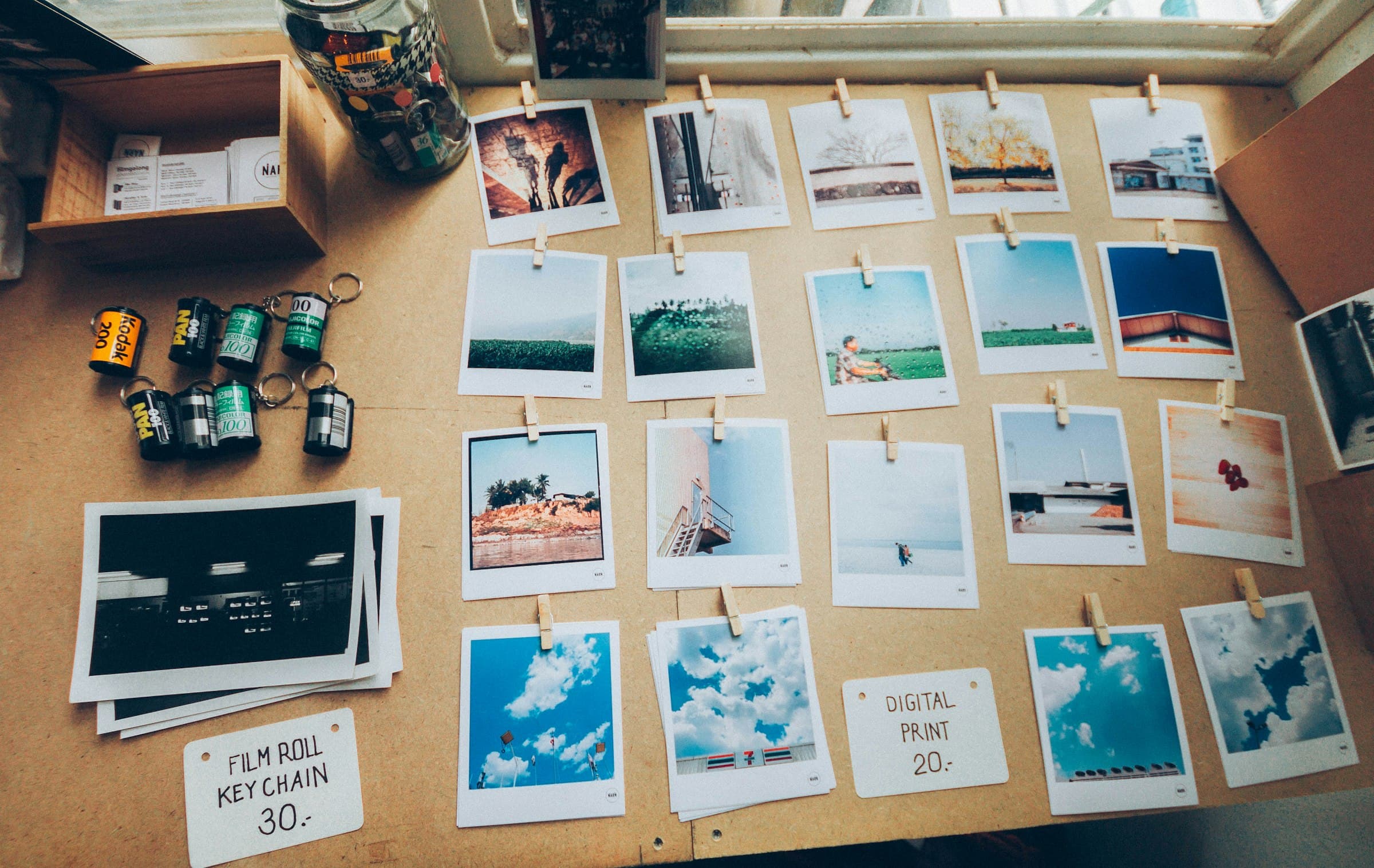
Select images and choose columns to build a grid collage.
- 1.Add multiple images
- 2.Drag the thumbnails into the order you want
- 3.Choose a layout (grid / masonry / feature / polaroid) and columns & ratio
- 4.Adjust gap, corner radius, frame and background color
- 5.Click “Confirm & Save” to download the collage
→ Output: A single collage image (PNG) combining several photos
Select images for a live preview.
About this tool
Arranges several images into a grid and merges them into one picture. You get a regular layout without pasting each photo and resizing it by hand. Photos are combined in the browser and never uploaded.
When to use it
- —Showing before and after shots side by side as one image
- —Gathering product photos from several angles into a single picture
- —Bundling event photos to share as one file
Good to know
- —Mixing aspect ratios causes cropping or gaps; pre-cropping to similar ratios looks cleaner.
- —The more photos you add, the smaller each becomes and the less detail survives. Around six reads well.
- —The merged result contains several originals, so the file can get large.